
While using Windows Laptop or PC, many times there is a need to take screenshots. Sometimes you have to save the record of an important document, sometimes you have to keep the proof of online payment, and sometimes you have to share an error or chat. But most of the users are limited to only Print Screen button, whereas many different methods and shortcuts are provided to take screenshot in Windows. These include features like full screen capture, screenshot of a specific part, active window capture, automatic save, screen recording and direct print.
In Windows 10 and Windows 11, Microsoft has made screen capture much easier through Snipping Tool, Xbox Game Bar, and various keyboard shortcuts. Many times people take a screenshot, but they do not know where it is saved or how to edit it immediately. In this guide, we are explaining in simple language almost all the methods of taking screenshots in Windows Laptop and PC.
1. The easiest way to take full screen screenshot
If you want to take a screenshot of the entire screen, just press the PrtScn (Print Screen) button on the keyboard. This will copy the screenshot of the entire screen to the Clipboard. Now you can go to Paint, Word, WhatsApp Web or any app. Ctrl + V You can paste it by pressing.
In different laptops or keyboards, this button can be found by the name of PrtSc, PrtScn, Print Scr or Print Screen. Whereas, in some laptops Fn + PrtScn May have to be pressed.
2. How to save screenshot directly in folder
If you want the screenshot to be saved automatically, Windows + PrtScn Press. The screen will dim slightly and the screenshot will be taken directly to this location “Pictures > Screenshots“. This method is easiest for those who take screenshots frequently.
3. How to capture just a part of the screen
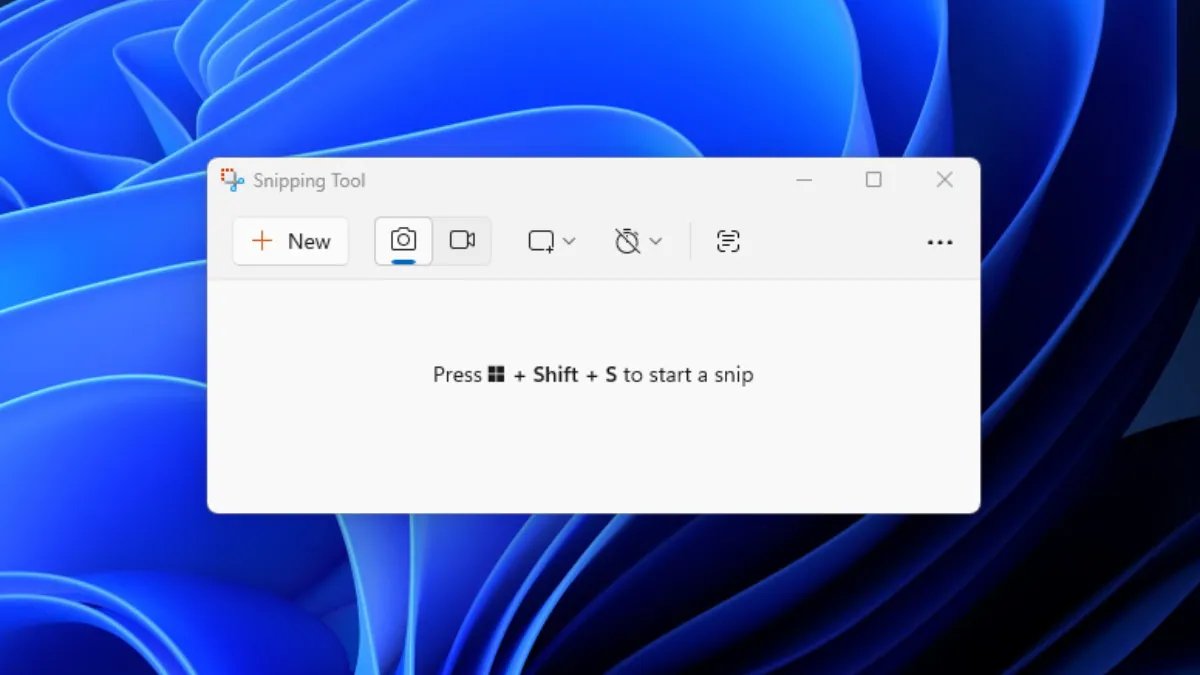
If you only want a screenshot of a specific part of the screen, not the entire screen, Windows + Shift + S Press. After this the screen will darken slightly and a small toolbar will open at the top. Here you will get many options:
- Rectangular Snip – Screenshot of the square snip
- Freeform Snip – Capture the desired shape
- Window Snip – Screenshot of a single window
- Full-screen Snip – Full screen capture
After taking the screenshot, it will be saved in the Clipboard. Then Ctrl + V Can be pasted anywhere.
4. How to take screenshot of only active window
If you have multiple windows open at once and you only need to take a screenshot of the active window, Alt + PrtScn Press. This will capture only the window that is active on the screen. This method is very useful in taking screenshots of the browser or a particular app.
5. Taking Screenshot with Snipping Tool
There is an inbuilt app named Snipping Tool available in Windows. To open it:
- Go to Start Menu
- Search Snipping Tool
- open the app
Here you get features like Delay Timer, Rectangle Mode, Window Mode and Full Screen Capture. After taking a screenshot in Snipping Tool, you can also Crop, Highlight, Draw and Save.
6. How to take scroll screenshot
Default Scroll Screenshot feature is not available in Windows, but some browsers and apps support it.
In Google Chrome:
- Press Ctrl + Shift + I
- Press Ctrl + Shift + P
- Type “Screenshot”
- Select “Capture Full Size Screenshot”
- This will save the entire webpage as a screenshot.
7. How to do screen recording
If you want to record the entire screen instead of a screenshot, Xbox Game Bar can be used in Windows. for this Windows + G Use the shortcut or click Start and type Xbox Game Bar. After this, by going to the Capture section, features like Record, Screenshot or Mic On/Off can be used. Recorded video in this folder “Videos > Captures“I am saved.
8. How to print directly
If you want to print a screenshot or any screen directly, then Ctrl+P Press. This shortcut works in almost all apps like Chrome, Edge, Word, PDF or Photos.
after this:
- Select Printer
- Set Copies
- Click on Print
Unable to take screenshot in Windows Laptop? These may be the reasons
If Screenshot doesn’t work:
- Fn key may be necessary
- Keyboard driver may need to be updated
- Clipboard error may occur
- Snipping Tool may be disabled
- Different modes can be active in Gaming Keyboard
- In such a situation, restart the system and try again.
Important Screenshot Shortcuts for Pro Users
- PrtScn – Full Screen Copy
- Windows + PrtScn – Auto Save Screenshot
- Alt + PrtScn – Active Window Screenshot
- Windows + Shift + S – Manual Selection Screenshot
- Windows + G – Screen Recording
- Ctrl + P – Print Command
- Ctrl + V – Paste Screenshot