
If you want to scan a document into PDF, it is not necessary that you download any separate scanner app. Nowadays, most Android smartphones have the option to scan PDF directly through camera or Google Drive. This not only saves phone storage but also reduces the privacy risks associated with third-party apps. If you want to convert Aadhar Card, PAN Card, Bill or any other document into PDF file, then this work can be done in a few minutes. Let us know the complete method.
How to Scan PDF from Google Drive
- Open the Google Drive app on your phone.
- Tap the “+” icon at the bottom right.
- Select “Scan” option.
- Take a photo of the document to be scanned.
- Adjust by cropping and rotating if needed.
- Tap “Save”.
- The file will be automatically saved in PDF format.
How to scan PDF with Camera App
Document Mode is available in the camera app itself in many Samsung, Xiaomi, realme, OnePlus and Vivo phones.
- Open the Camera app.
- Go to More or Modes section.
- Select Document Scan option.
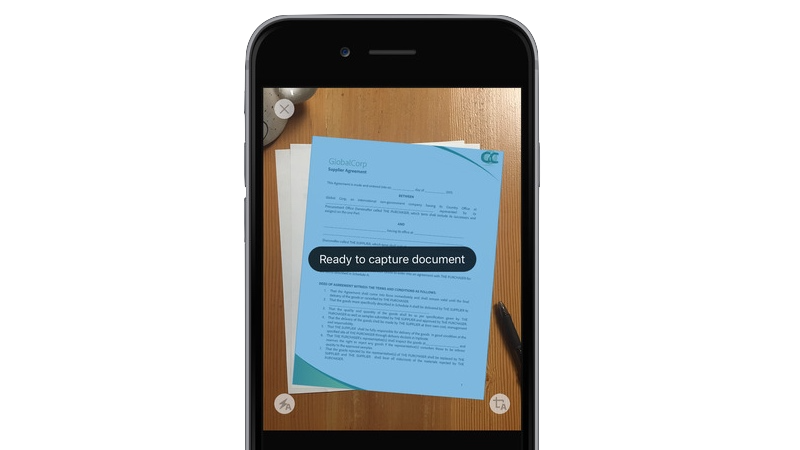
- Take a photo of the document.
- The phone will automatically recognize the edges and prepare the scan.
- It can be saved or shared as a PDF.
Keep these things in mind while scanning
- Place the document on a flat surface.
- Use adequate lighting.
- Keep the camera lens clean.
- Crop the edges properly before scanning.
Latest Tech News, smartphone review and popular Mobile Gadgets 360 for exclusive offers on Android Download the app and follow us Google News Follow on.